Almost missing line in Preferences
Completed
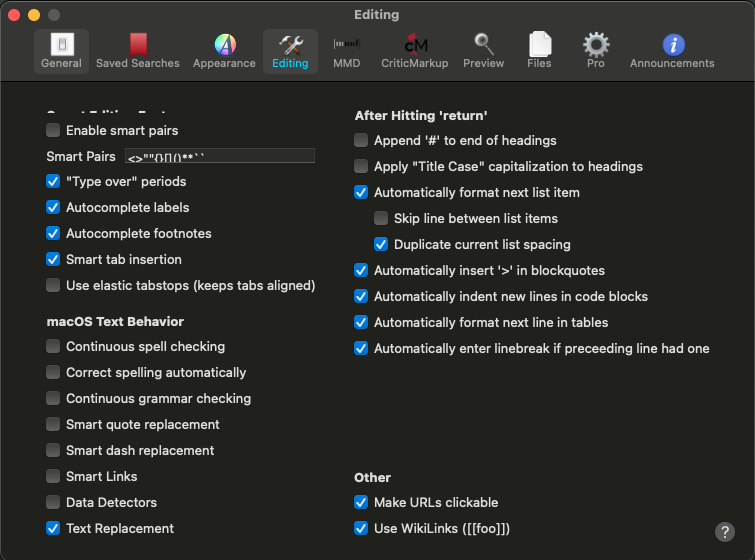
When I open “Preferences” > “Editing”, there seems to be a missing line above the “Enable smart pairs” option (see screenshot). Since the Preferences window isn’t resizable, I can’t see what’s missing. I’m on version 1.0.078.
Thomas
-

What version of macOS are you using?
If macOS 11, but not 11.2.3 or greater, then please update your macOS and see if that resolves the issue.
(And FYI, it's just a header, so nothing functional that is being cut off. But on my machine it *seems* to be a macOS 11 bug that was resolved in latest version.)
0 -
Thanks for the reply! I am on 11.2.3 (Danish, but I guess that shouldn't make a difference).
Thomas
0 -
Interesting.
In this case the language could actually make a difference, but not super likely. I’ll keep experimenting.
0 -
Thanks. I just upgraded to 11.3, and it looks the same.
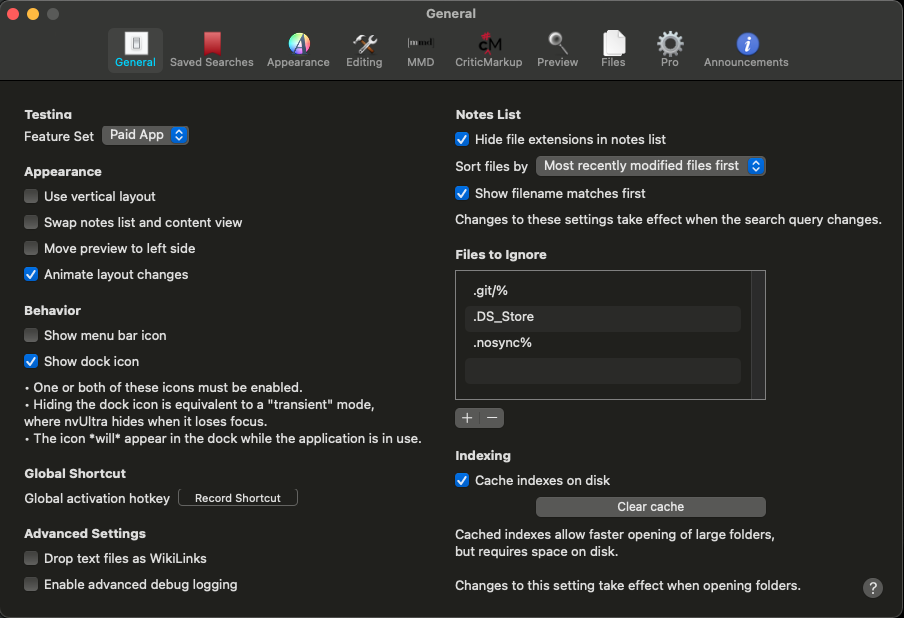
I noticed a similar problem problem in the “General” tab in the Preferences window, where the lower part of “Testing” is missing (see screenshot).
Thomas
 0
0 -
1. Does this still happen when not in Dark Mode?
2. What display resolution are you using?
3. Are you running any sort of visual accessibility features?
4. Have you tried using English as the system language? I can't replicate even when I tried switching to Dansk...
0 -
1. Yes.
2. Ha, that's interesting! When the Preferences pane is on my external monitor (a Samsung S27E650 at 1080p (if that's the display resolution)), the letters are clipped. But when I drag it onto the built-in screen on my MacBook Pro 2016, it all looks fine (and when I drag the Preferences pane back to the external monitor, it still looks fine, until I click another tab and then “General” or “Editing” again).
3. No.
4. Not yet; hoping (2) indicates what the problem is.
Thomas
0 -
This is sounding more and more like a macOS issue. The preference panes are created using nested autolayout views. All of the testing I have done does not show a problem on my end that would cause what you are seeing. Particularly not something that changes based on which monitor you use.
I'll keep an eye out, and keep looking for anything I can tweak. But I wonder if the issue isn't something in auto layout getting "confused" when working on two different resolution monitors?
What happens if you change the scaling on your built-in MacBook display? Does the problem go away at certain internal/external resolution combinations? e.g. if your internal and external displays have something approximating the same resolution??
0 -
I tried various combinations on my built-in display and the external monitor, and the problem persists even when they approximate the same resolution. Since it sounds like an edge case and is purely aesthetic, perhaps we should just leave it for now and hope a future macOS release will solve the problem. Thanks for your efforts!
Thomas
0 -
I can replicate this by using an external display on my MacBook Air running 11.2.3 (I have not upgraded past that yet.)
I cannot replicate on a Mini running 10.15.7 using two 1080p displays, even when I set them to different resolutions.
I'll keep an eye out, but for the time being, my best guess is that this is a macOS issue, not a nvUltra issue. If I'm wrong, and become aware of a fix, I'll be happy to make it.
Thanks!!
0 -
OK, I'll also let you know if anything new happens on my side.
Thomas
0
Please sign in to leave a comment.
Comments
10 comments